

To update LCL contract rates, please go Rates -> Contracts and select LCL tab:
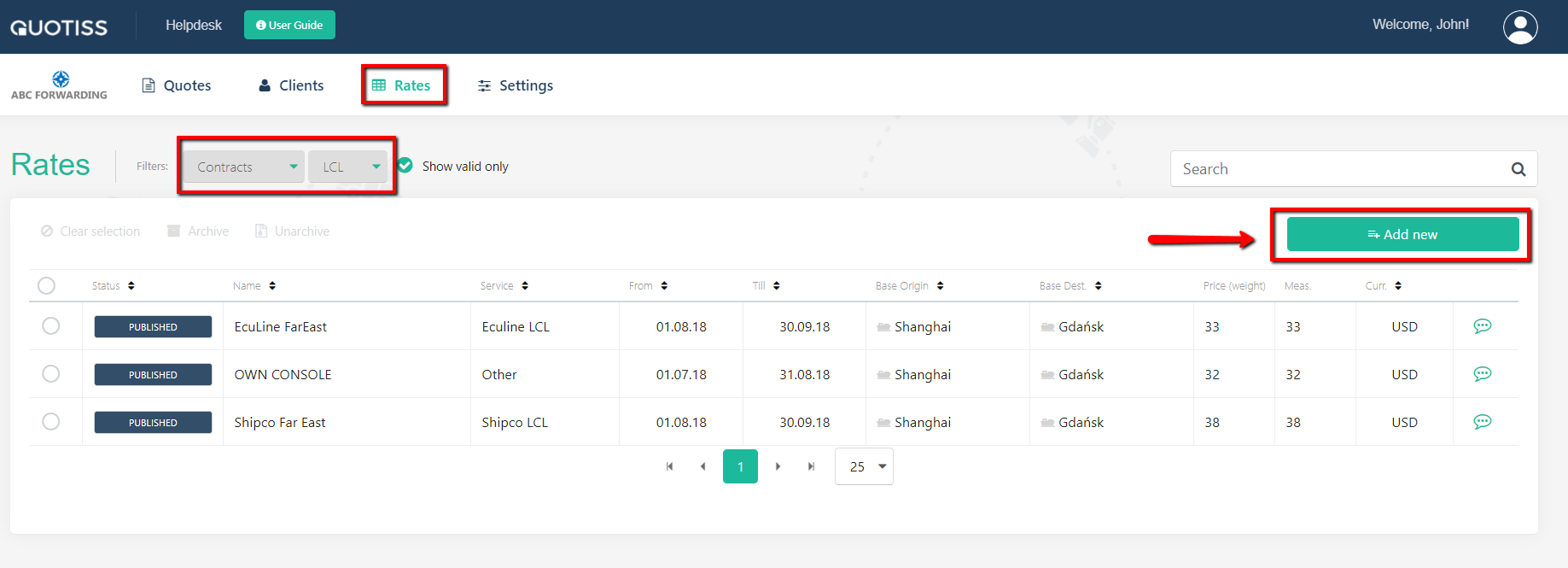
Click Add New.
There are 2 types of LCL contracts. You need to select a contract type, and here is how.
Linked contract: mostly applicable for the Far East trade, where the arbitrary ports are linked to main ports. You define the base freight rate and link the rest of the rates via arbitrary ports additionals. Using a linked contract, you simplify rate updates. Changing one base rate you revise the entire contract.
Flat contract: applicable for all contracts and trades. Rates are uploaded as a list, with no specific rules.
Below you can find the guide for both types of contracts.
1. Linked contract
Fill in the fields as shown on the below example:

You need to select one port pair as a BASE port pair. The rest of the rates will be linked to it.
Update the base rate for Weight (mt) or (kg) and Measurement (cbm). You can also set up the conversion ratio 1CBM = ?KG.
2. Flat contract
Fill in the fields as shown on the below example:

Once all required fields are updated, click 'Create' button. Now you can:
- add locations manually or upload automatically,
Once done, you can Publish the contract.
NB: You can also use the 'Clone' function - this way you don't have to create contracts from scratch. When you use the 'Clone' functionality, you clone the entire setup of the contract, including origin ports, destination ports, surcharges, and clauses.