

Once the Freight and Charges are updated, and the Layout of the quote is OK, the offer can be sent in an email directly from Quotiss.
To see the email options, please go to Email tab.
There are 2 options:
- send quote as a new message (read here)
- reply to the email thread from your mailbox (read below)
REPLY TO THE EMAIL THREAD FROM YOUR MAILBOX:
NB: your mailbox has to be integrated with Quotiss to be able to use this functionality.
Go to the EMAIL tab in your quote and select 'Send in reply to':
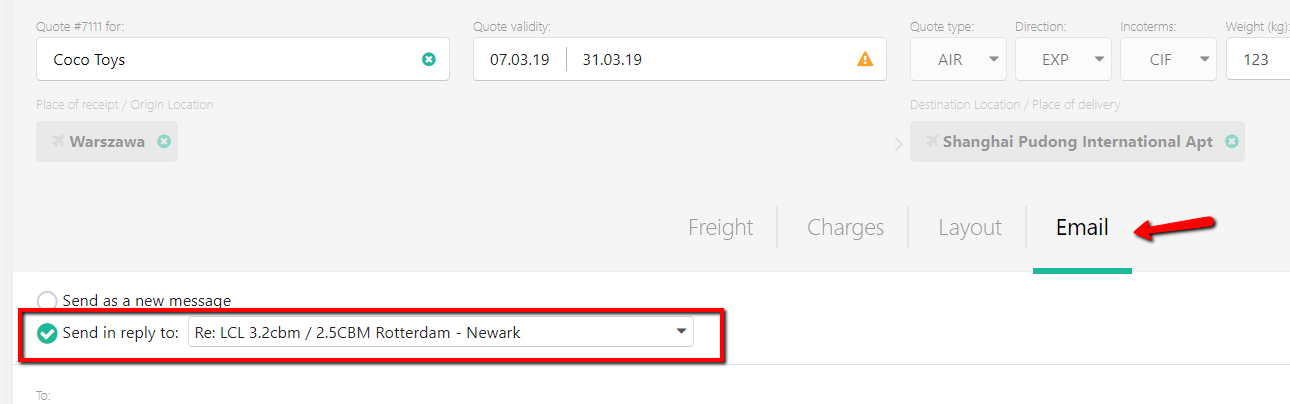
Quotiss will check the CLIENT in the quote and then pull the emails from your mailbox where the contact person email matches.
You will be able to pick a thread based on the subject.
NB: Quotiss will always display the latest email in the correspondence thread.
Fields will be updated as follows:
TO / CC / BCC: based on the email thread
Subject: Added automatically based on the email thread
Message:
- Greetings if they are updated in the Client Profile. You can overwrite it if needed. Add your email text below the Greeting.
- Quote preview
- Email thread
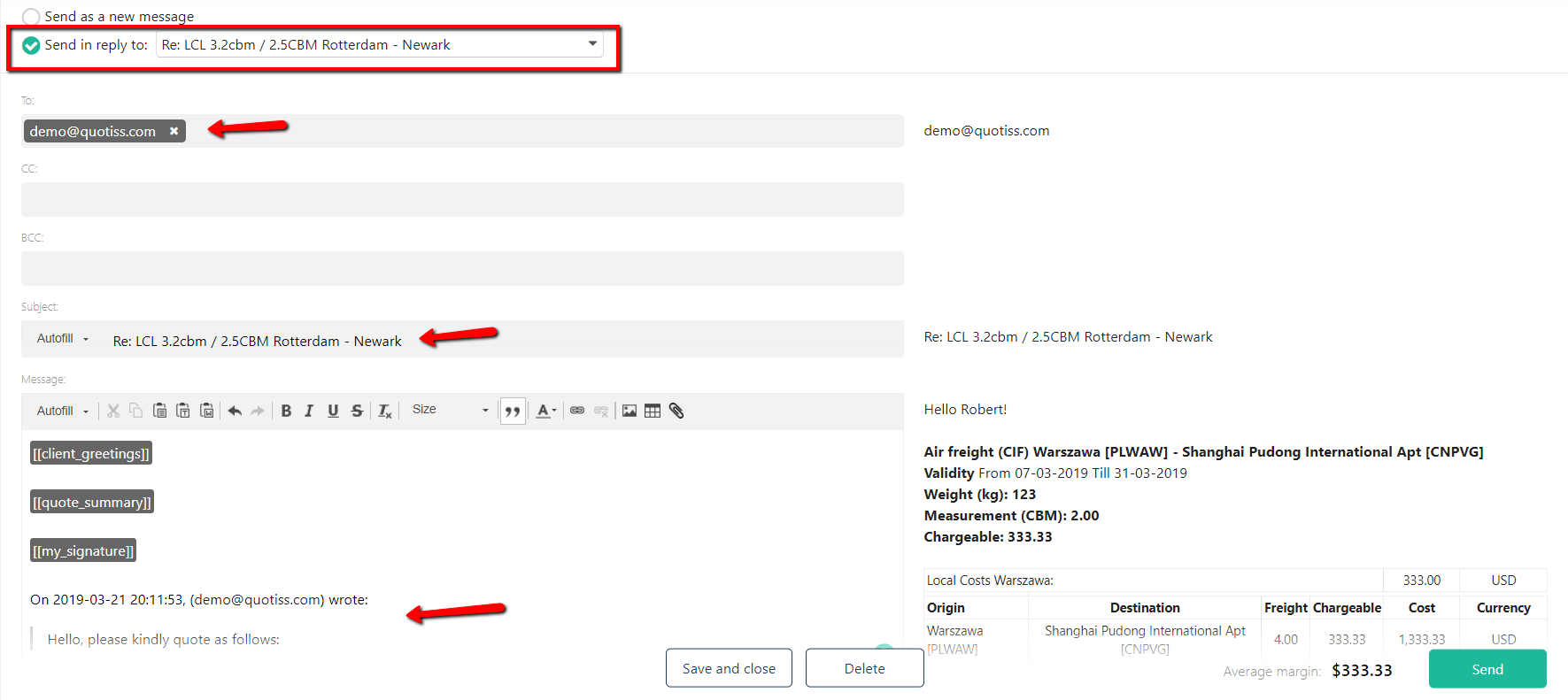
When all fields are updated correctly (nothing is highlighted in red), the SEND button will appear.
Click Send to send your email.