

In order to create and send an offer (the same offer) to more than one client, you can use a new GROUPED QUOTE feature.
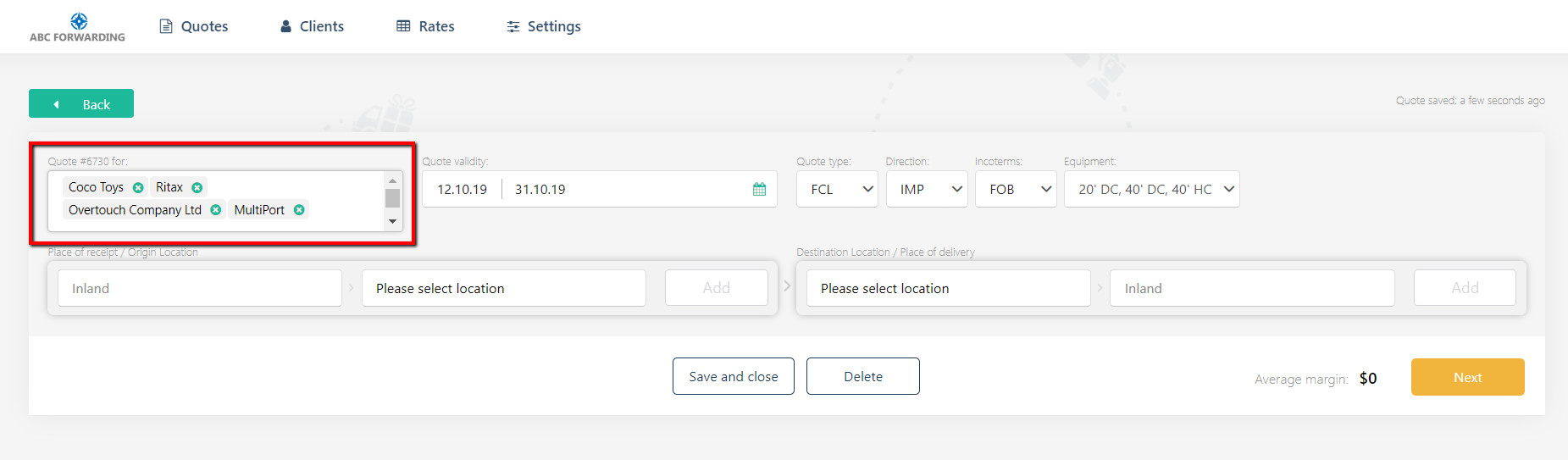
1) Create new or replicate an existing quote and keep adding more clients to the client field:
2) Go to the Clients tab and select several clients from the list. Click 'Create quote' button:
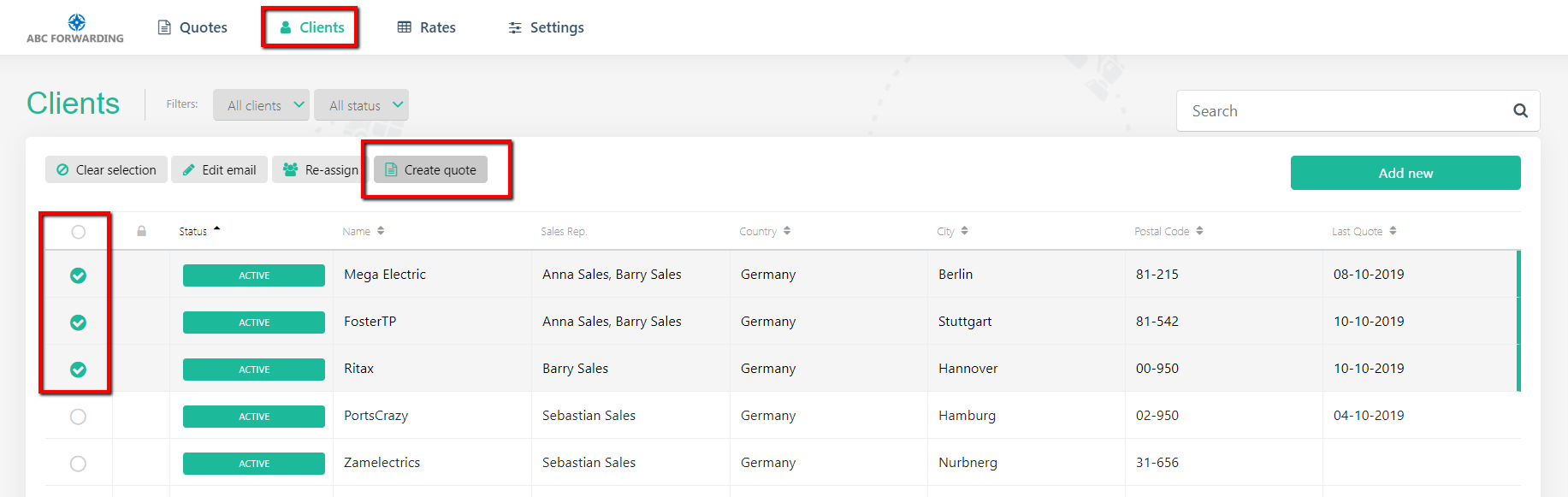
For easier client grouping, you can use hashtags.
Once you've selected several clients, proceed normally with creating an offer. Fill in the details for FREIGHT, CHARGES and select the LAYOUT OPTIONS.
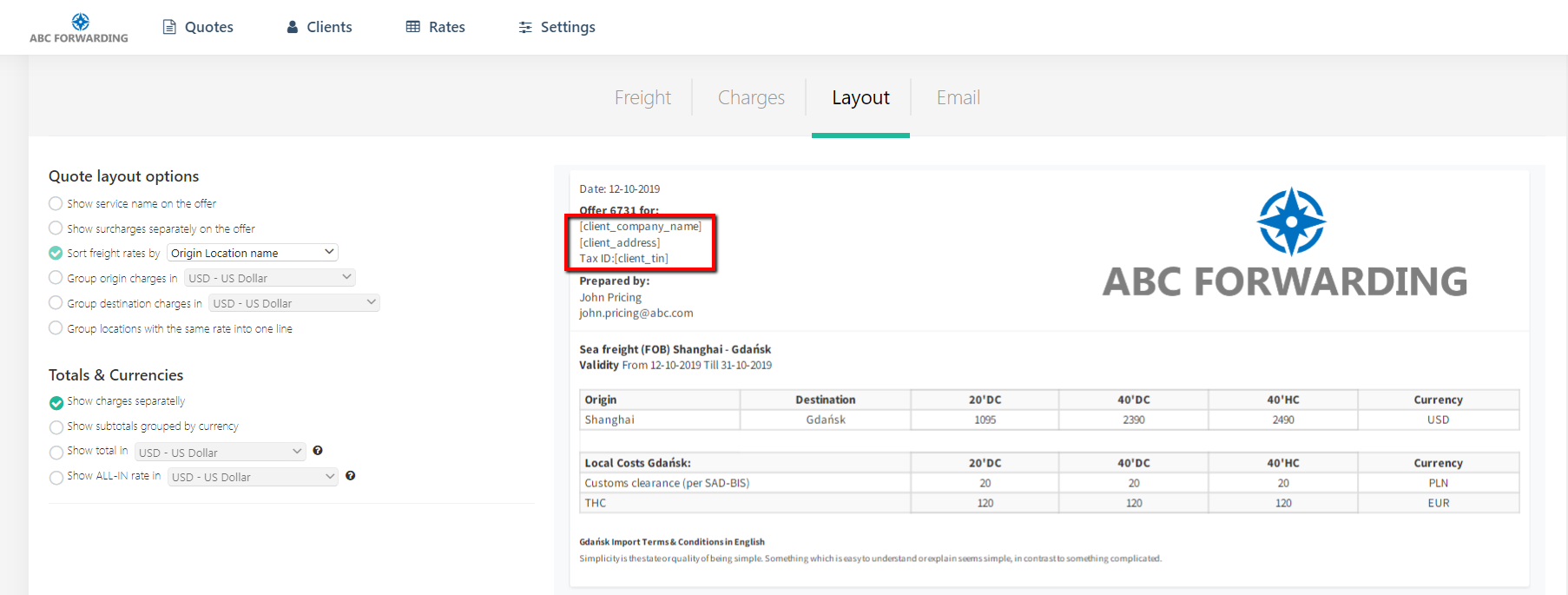
NB: On the quote layout and email preview, you will notice that instead of the client details and quote ID we use placeholders.
Since there are multiple clients selected, we do not display the exact client details on the preview, but the placeholder instead. Only the 'shared' info is displayed. Once you send the quote, the system will fill it in with the actual client & quote data.
Once you click 'SEND', the system will generate a separate quote to each client. Each quote will appear separately on your Quote List, as if you have created and sent each of them one by one.
The multi-client quote will also be saved on your Quote List. The status of this quote will be changed to GROUPED after sending. You can later Replicate the GROUPED quote following the usual steps.
