

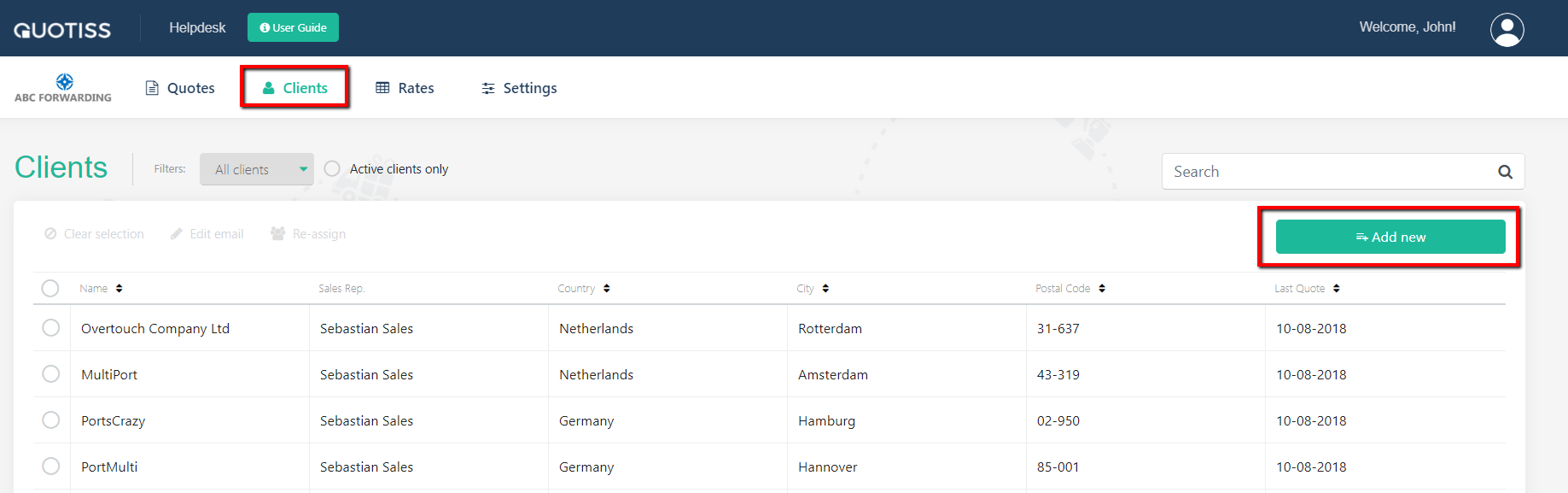
Go to Clients and click 'Add New' button at the top right corner:
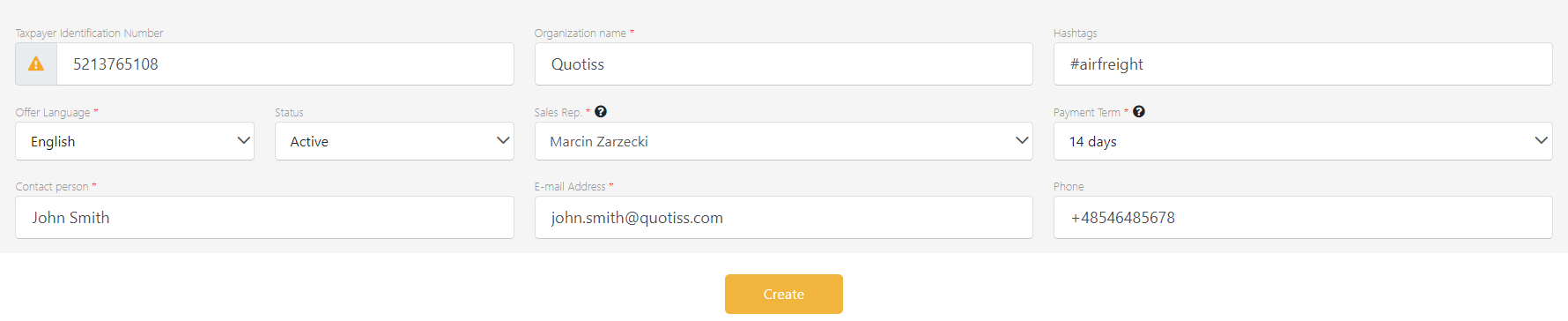
Update all required fields. Fields marked with (*) are mandatory and click 'Create'
Once you click 'Create', you can add more details to the client profile:
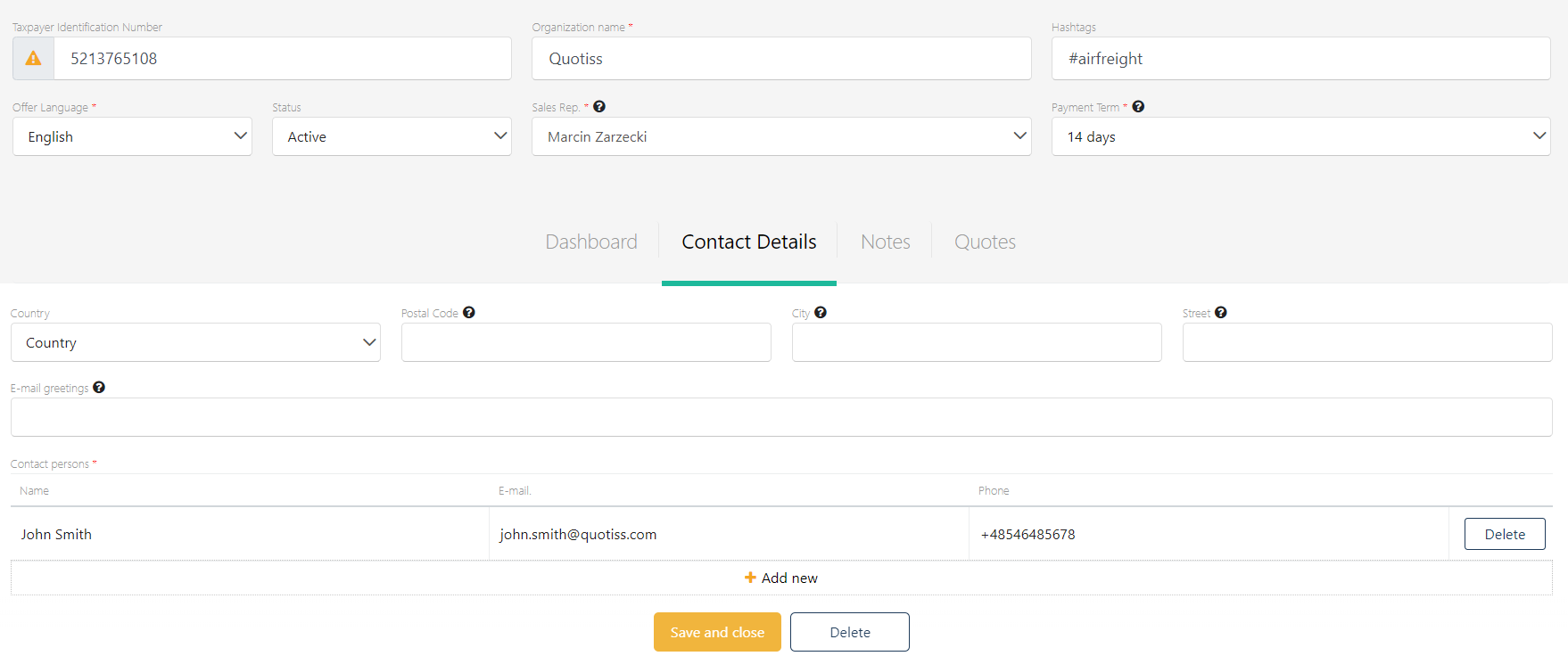
After all required fields are updated – click the ‘Save and Close’ button. New Client will appear on the list.
Tips:
You can change the freight quote language for this specific client from the drop-down menu. The default language setting comes automatically from your browser.
In the Greetings, you can personalize the e-mail template for the customer. Greetings example: ‘Hello, Dear John’, ‘Hi Mary’ or ‘Dear Mr. Smith and Dear Ms. Jackson’. This line will appear at the top of the e-mail template generated by the system.
By default, the client will be assigned to a user, who added this client to the system. It is possible to assign more Sales Reps to one client.
By default, all clients are created as Active. You can change client status to Potential or Blocked. Blocked clients are blocked from quoting freight.