

In order to create a new LTL quote, please go to Quotes and click 'Add New':
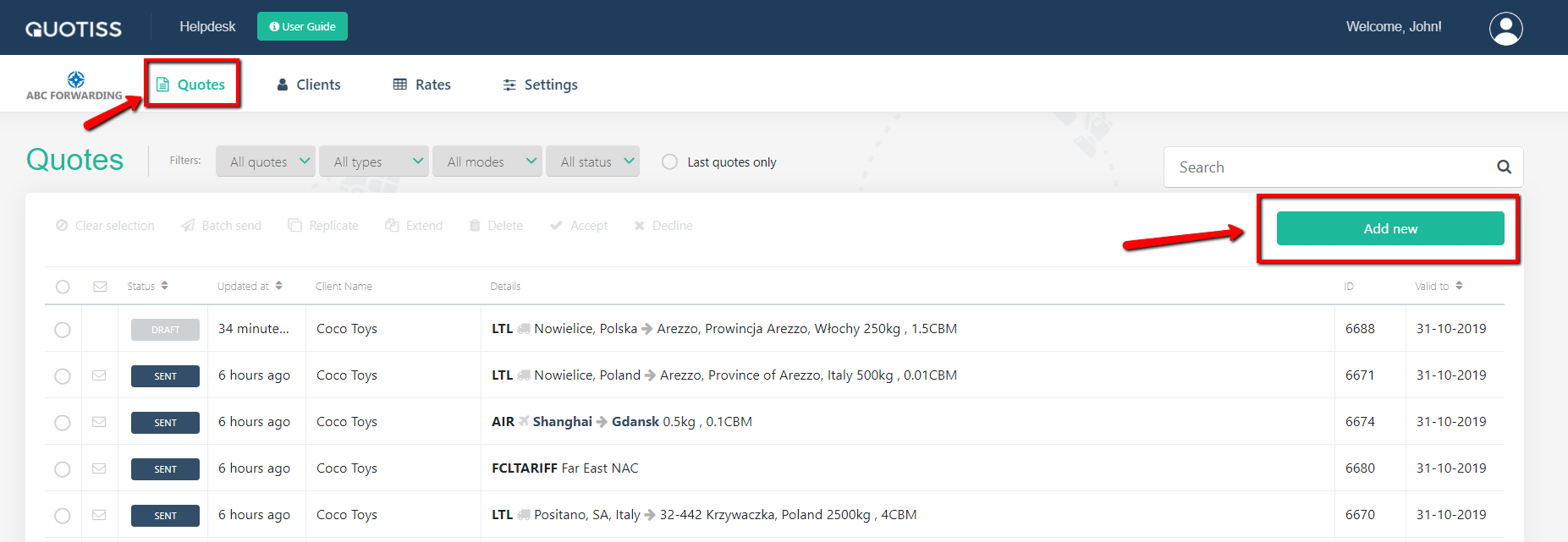
First, please update the quote header:
Please choose a client (if the client is new, please create the client profile first), set the quote validity date, quote type = LTL, direction (Incoterms), and add weight/measurement of the shipment (manually or using a calculator):

If the cargo is on pallets, mark 'Pallet' checkbox. In this case the number you have put under 'PCS' (colli) will be calculated as pallet.
Select origin and destination airports and pick up location.
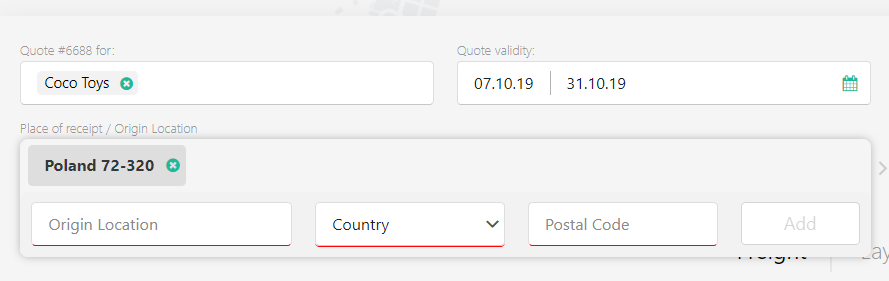
Field 'Origin location' is powered by Google Maps and will help you to find the location you are looking for. It will also automatically fill in 'Country' and 'Postal Code' - but you have to ensure that automatic update is correct. If not correct, please edit 'Country' and 'Postal Code' manually.
Do the same for the destination location.
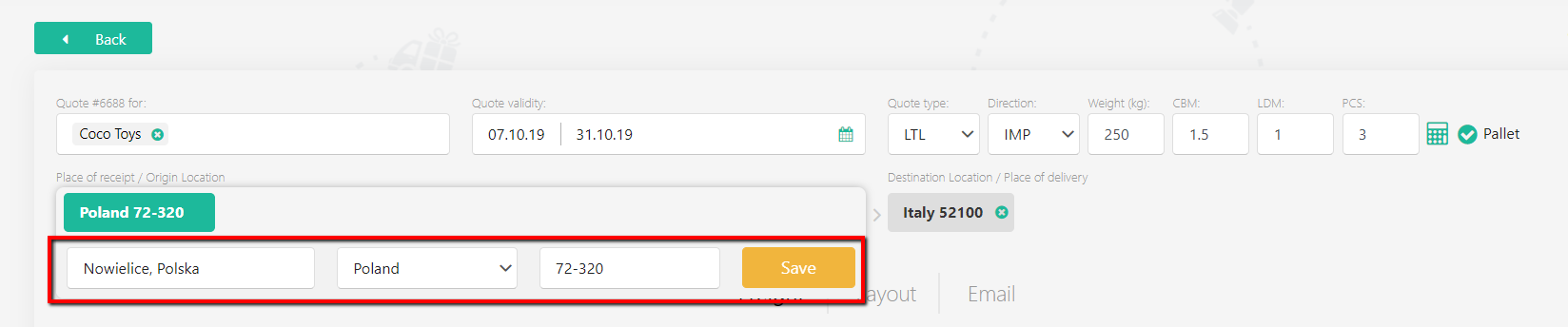
Once you've added origin and destination, you will see the list of available rates, already calculated for your shipment measurements. Select a freight rate (you can select several rates if available):
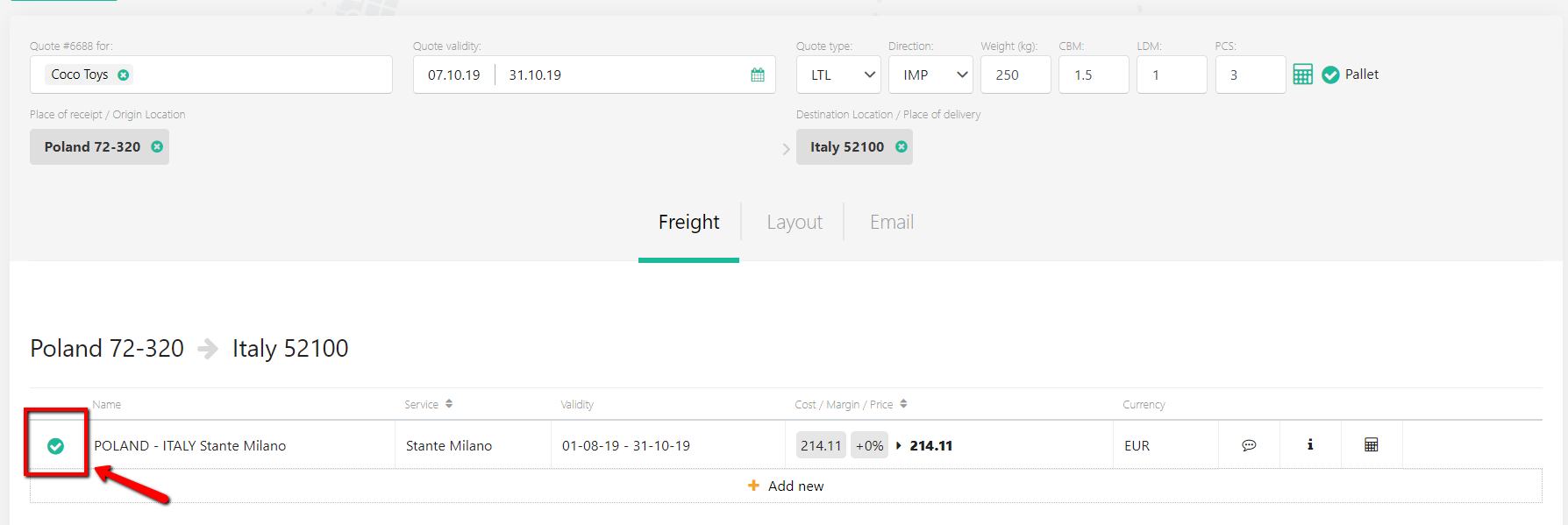
Now add the margin and surcharges from the list:
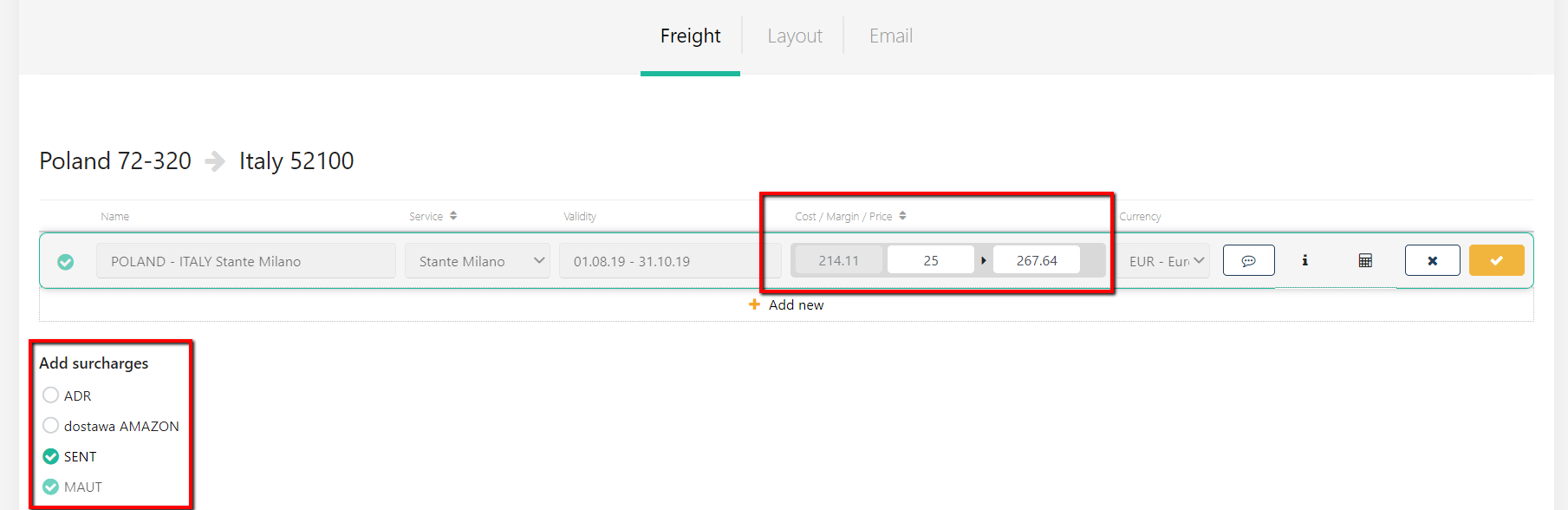
NB: you can add margin in %, or as a lumpsum (total). Margin is applied to the net rate with included surcharges.
Now you can go to Layout and preview the quote. You can show the service name on the offer, modify terms and conditions and add a total in any currency to the quote.
Once the quote draft is ready, you can send a quote. It is also possible to send the quote in reply to your client, as a continuation of the correspondence.
Please follow the above links to learn more.